
Introduction
Remove Metadata from PDF Before Sending is not just a technical step, it is a critical security practice. Many professionals assume that once a document is converted into a PDF, all internal details disappear. In reality, hidden information often remains embedded inside the file.
PDF metadata may include the author’s name, company details, creation dates, editing history, software used, and internal comments. When documents are shared with clients, investors, or external partners, this hidden data can unintentionally reveal sensitive business information.
In this guide, we present a clear and practical approach to identifying, reviewing, and removing metadata from PDFs before sending them. By implementing a structured workflow, we ensure that every shared document reflects professionalism, security, and control.
What Is PDF Metadata and Why It Matters
Metadata is information stored within a PDF file that is not visible in the main document content. While readers see text, images, and layout, additional technical data exists in the background.
Common metadata fields include:
- Author name
- Organization
- Document title and subject
- Creation and modification dates
- Editing software
- Hidden comments and revisions
In business environments, these details can reveal internal processes or confidential information. For example, a proposal might expose the internal author responsible for pricing decisions. A contract draft might still contain tracked changes or comments never intended for external review.
Beyond confidentiality, metadata can also present cybersecurity risks. Attackers often use document metadata to gather intelligence about companies.
Removing metadata before sending a PDF protects sensitive data and strengthens professional credibility.
How to Check Metadata Before Sending a PDF
Before removing metadata, we must first identify what information is embedded in the document.
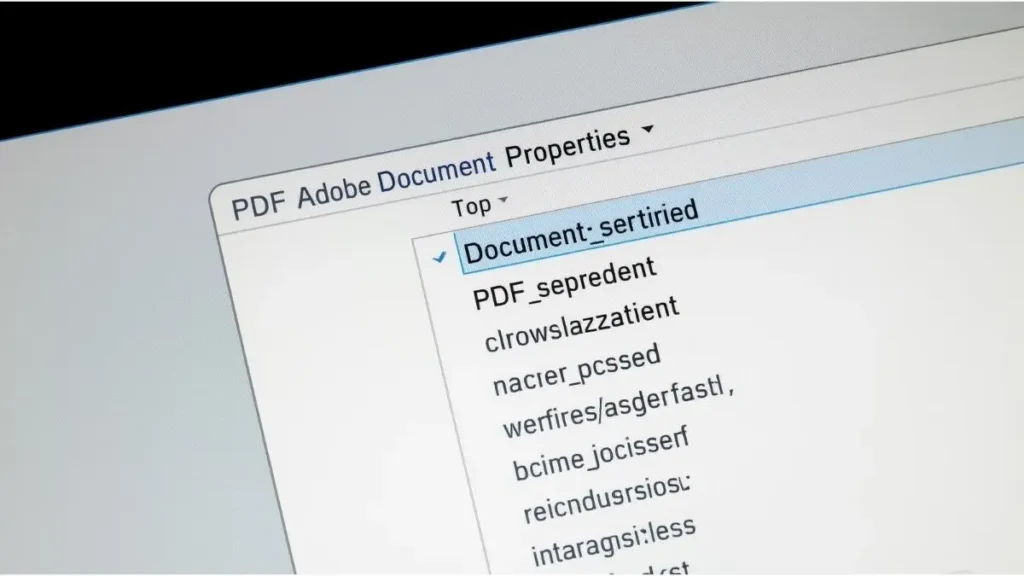
Using Adobe Acrobat
With Adobe Acrobat, follow these steps:
- Open the PDF
- Click File
- Select Properties
- Review the Description and Advanced tabs
This section displays core metadata fields.
Using Adobe Acrobat Reader
Even in Adobe Acrobat Reader, some metadata can be accessed through document properties.
Using the Operating System
In Microsoft Windows:
- Right click the file
- Select Properties
- Open the Details tab
In macOS:
- Select the file
- Press Command + I
- Review file information
This quick review step helps prevent accidental exposure before sending the document externally.
Methods to Remove Metadata from PDF Before Sending
There are multiple effective methods to clean metadata from a PDF.
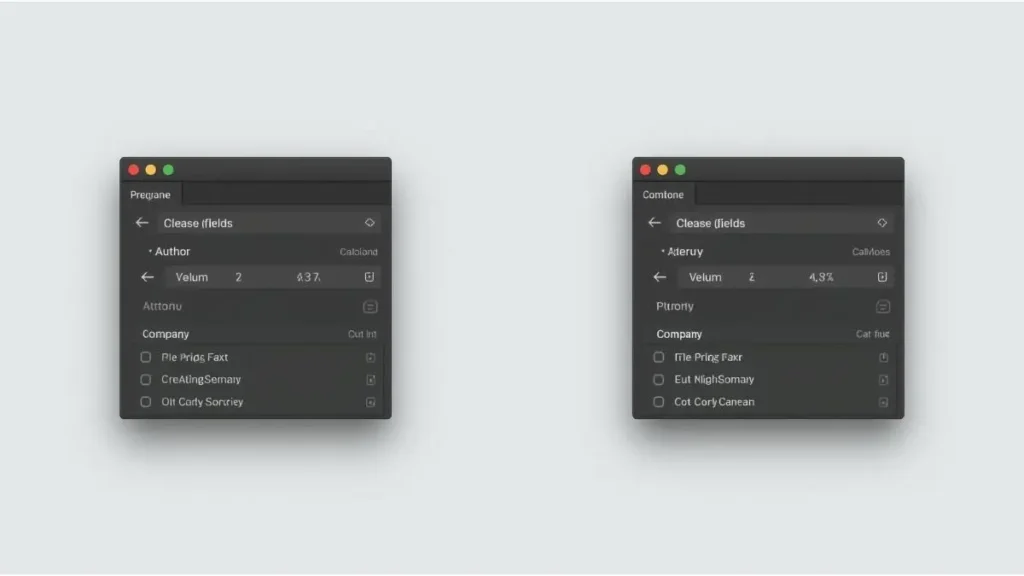
1. Using Adobe Acrobat Pro
Within Acrobat Pro:
- Open the file
- Go to File
- Select Properties
- Manually clear metadata fields
- Use the “Sanitize Document” feature
The sanitize tool removes hidden information including metadata, comments, attachments, and embedded content.
This is the most reliable solution for corporate environments.
2. Reprinting the PDF
Another approach is:
- Open the PDF
- Select Print
- Choose “Microsoft Print to PDF”
This creates a new version of the file with reduced metadata. However, it does not always remove all hidden data.
3. Professional Metadata Removal Tools
Specialized metadata removal software performs deep cleaning and is recommended for businesses handling contracts, legal documents, or financial data.
Selecting the appropriate method depends on the document’s sensitivity and organizational requirements.
Secure Workflow Before Sending a PDF
Standardizing a workflow reduces human error and ensures consistency.
flowchart TD
A[Create Document] --> B[Convert to PDF]
B --> C[Check Metadata]
C --> D[Remove Metadata]
D --> E[Final Review]
E --> F[Send to Client]
Practical Best Practices
- Always review document properties
- Remove comments and hidden layers
- Keep internal drafts separate from final versions
- Implement a pre-send checklist
By integrating this process into daily operations, we significantly reduce exposure risks.
Benefits of Removing Metadata Before Sending
Implementing metadata removal provides measurable advantages:
Enhanced Data Protection
Sensitive business information remains internal.
Stronger Professional Image
Clients receive clean, finalized documents without hidden notes.
Regulatory Compliance
Organizations reduce risks related to data protection policies.
Cybersecurity Reinforcement
Limiting technical exposure minimizes intelligence gathering risks.
Just as companies secure physical documents, digital files require the same level of control.
Additional PDF Security Measures
Metadata removal is only one layer of protection. Additional steps include:
- Password protection
- Editing restrictions
- Encryption
- Redaction of confidential information
For deeper security strategies, explore related articles:
- Complete Guide to Securing PDF Files
- How to Encrypt Sensitive Documents
- Corporate Data Protection Checklist
- Best Practices for Secure File Sharing
Combining these measures creates a comprehensive digital security framework.
Conclusion
Remove Metadata from PDF Before Sending is a simple yet powerful safeguard. Hidden information inside PDF files can expose strategic data, internal communication, and technical details.
By implementing structured verification, proper removal tools, and a standardized workflow, we ensure that every document shared externally reflects professionalism and security.
Taking a few minutes to review metadata before sending can prevent costly mistakes and protect organizational integrity.
Have you reviewed the metadata in the last PDF you sent to a client?

Igor Greco is the founder of GrecO Metadados and has spent the last several years researching how hidden file data — metadata — exposes personal information that most people never intended to share.
His interest in metadata privacy started with a frustrating realization: a photo he shared online still carried the exact GPS coordinates of where it was taken. That moment led him to dig deeper into EXIF data, document properties, and how everyday apps handle the information attached to your files — often without telling you.
Since then, Igor has tested dozens of metadata removal tools across Android, iPhone, Windows, and Mac, and written guides focused on three groups he cares most about: parents sharing photos of their kids, freelancers sending documents to clients, and everyday users who simply want more control over their digital footprint.
Privacy, in his view, isn’t about hiding. It’s about deciding — on your own terms — what information travels with your files.