
Your device can quietly add GPS coordinates to every picture when the Camera app can access location data. That makes it easy to find vacation shots later, but it also means a shared image can reveal where you were.
Good news: turning that off is fast. In about 17 seconds and a few taps in Settings on iOS 17 or 18, you stop new pictures from carrying coordinates. You do not need technical skills.
This short guide follows the exact menus you see on your phone so you won’t guess where Apple hides the controls. You’ll also learn the difference between switching off tagging for new images and stripping metadata from files you already have.
By the end, you’ll have a clear plan to tighten privacy on your device without losing features you still use every day.
Key Takeaways
- You can stop GPS metadata on new pictures with a few taps in Settings.
- The guide shows the Camera app option versus removing data from existing files.
- Turning this off protects your privacy when sharing images online or by message.
- It takes seconds and no technical skill to change the setting on iOS 17/18.
- You’ll keep useful search features while avoiding unwanted tracking.
Why iPhone Photos Include Location Data and When You Might Want It Off
Your camera can tuck a small map into each file, in the form of hidden metadata that records where and when the picture was taken. This info is saved inside a photo or video file as coordinates and time stamps.
How your phone finds you: when Location Services is on for the Camera, your device uses GPS plus nearby Wi‑Fi, cellular signals, and Bluetooth to produce a position. Those combined signals make tagging work even if GPS alone is weak.
How the Photos app uses those coordinates
The Photos app reads embedded coordinates to power map-based collections and “Places” views. That makes it easy to browse by trip, city, or a specific spot in time.
Privacy and security risks when sharing media
Sharing an image or video that contains location data means recipients may access the coordinates and learn where it was taken.
- Benefit: tags help you find pictures from a vacation or specific time faster.
- Tradeoff: the same tags can reveal sensitive spots like home, work, or a child’s school.
- Control: library organization and what you share are managed in different settings, so you can keep maps for yourself but stop coordinates from leaving your device.
How to disable location iphone photos by Turning Off Camera Location Services
Quick summary: change one permission and future photos and videos will no longer include embedded coordinates.
Where to go: open Settings → Privacy & Security → Location Services → Camera. Tap the Camera entry, then select Never. This prevents the camera app from getting Location Services access when you take new shots.
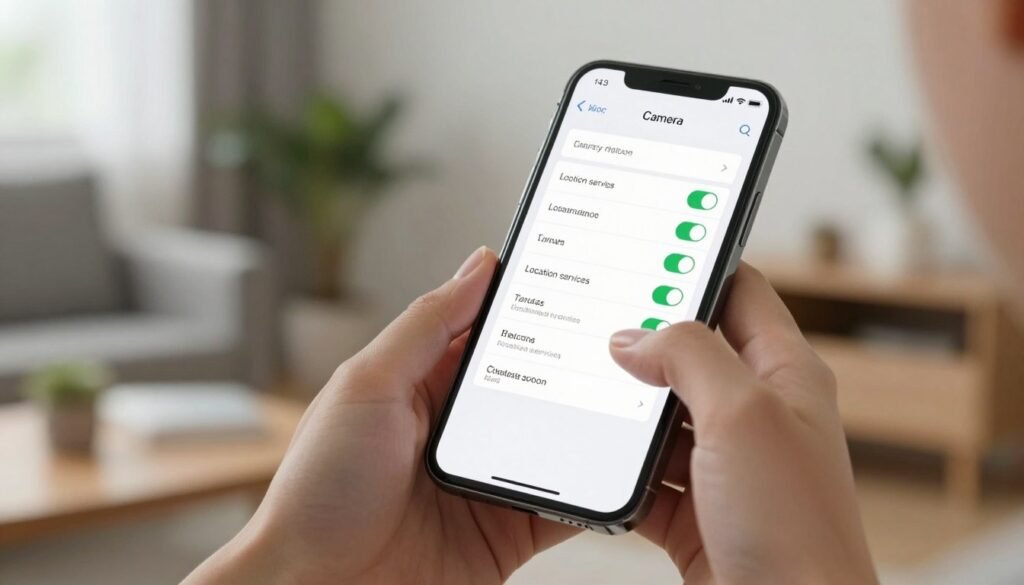
What “Never” does and what it doesn’t
Setting the Camera to Never stops GPS and other position signals from being recorded in future media. New pictures and videos will no longer carry location data in their metadata.
This change does not remove coordinates already saved in your library. You’ll need the Photos app tools to strip older files if you want them cleared.
- You’ll lose map-based browsing for new captures, but your privacy is stronger.
- Turning off Camera access is the most reliable, set-and-forget way to stop embedding GPS tags.
- Remember this applies only to the Camera app; other apps can still request services unless you change their permissions too.
How to Remove Location Data From Existing Photos and Control Sharing
Start by checking a single image to see if it carries hidden map data. Open the file in the Photos app and swipe up or tap the info (i) button to view its metadata. The panel shows whether the photo or video includes coordinates.
To browse by place, go to Collections > Map. Only images and videos with embedded GPS appear there, so this is a quick way to spot items that hold location data photos.
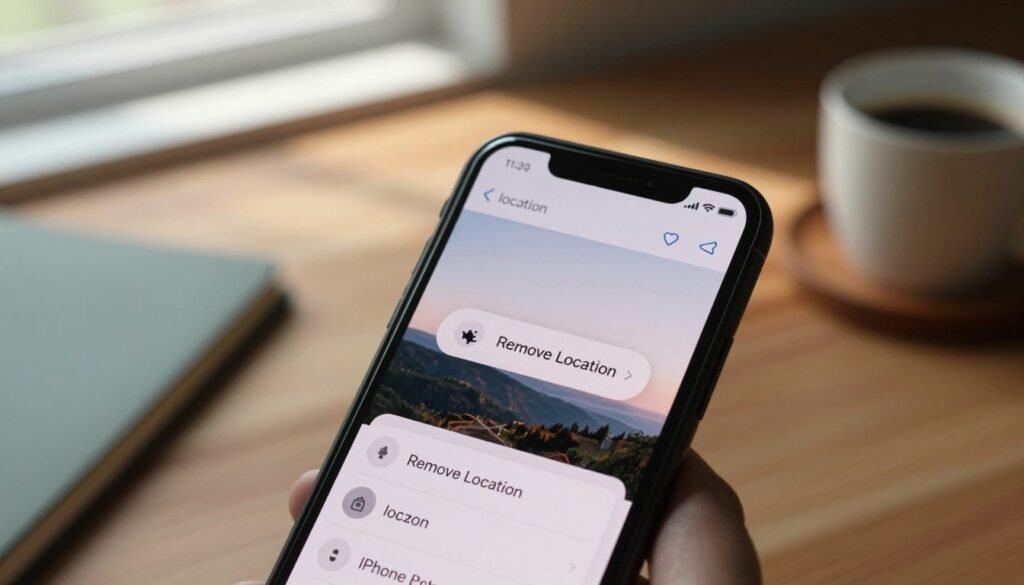
Remove metadata from one photo
Open the image from Albums, tap the menu or info, choose Adjust Location, then pick No Location. This will remove the metadata for that file without touching the rest of your library.
Remove when you share
Use the Share Sheet. Tap Options at the top and turn off Location before you send. That prevents recipients from getting coordinate data but does not change the stored file.
Per-app defaults and fallbacks
In iOS 18.2 you can set per-app defaults: Settings > Privacy & Security > Photos > choose an app > Private Access > Options to stop sharing Location and Captions and select a sharing Format (Most Compatible, Current, Automatic).
If an app doesn’t support the newer controls, repeat the Share Sheet step for each send or make the more permanent choice of removing camera access in Settings so new photos and videos never save GPS metadata.
Conclusion
To finish, think of your camera settings, your saved files, and your sharing choices as three separate controls you can use right now.
Stop new tags by setting Camera access in Settings to Never. That is the cleanest long-term way to keep coordinates off future photos and strengthen your privacy and security.
Keep some images private by removing metadata from the original file when needed. Use the Share Sheet Options if you only want to prevent sending place info for a single message or post.
Do a quick check of a few images after you change settings so the app behavior matches what you expect. You can still enjoy iphone photos while keeping where you were private and simple to manage.
FAQ
What does location metadata mean and how does your iPhone record it?
Location metadata is a small set of coordinates and related details embedded in an image or video file. Your device can record this using GPS, nearby Wi‑Fi networks, cellular triangulation, and Bluetooth. The camera app automatically stores these coordinates when it has permission, which makes it easy to sort media by place or see where a shot was taken on a map.
How does the Photos app use embedded coordinates?
The Photos app reads embedded coordinates to organize items into map-based collections and “Places” views. That lets you browse media by neighborhood, city, or trip. Apps can also use this data for features like Memories, location-based searches, and contextual suggestions.
What privacy or security risks come from sharing pictures with coordinates attached?
Sharing files that include coordinates can expose where you live, work, or travel. Strangers could infer routines or sensitive locations. For safety and privacy, many people remove or omit geodata before posting online or sending files to unfamiliar contacts.
Where do you turn off Camera location services on your device?
Open Settings, go to Privacy & Security, then Location Services. Find the Camera entry and set it to “Never.” That prevents new photos and videos from recording coordinates going forward.
What does setting Camera to “Never” actually change?
Choosing “Never” blocks the camera from accessing positioning services so future shots won’t include geotags. Existing files retain their embedded coordinates until you remove them manually.
How can you tell if a specific photo or video contains geodata?
In the Photos app, swipe up on an item or tap the info (i) icon to view details. If coordinates or a place name appear, that file contains location information. You’ll also see a small map preview when geodata is present.
How do you view photos grouped by place in the Photos app?
Use the search field or the “Places” map within Photos. The app clusters items by where they were taken, making it simple to browse a trip or a neighborhood using map-based collections.
How can you remove location metadata from an individual image in the Photos app?
Open the photo, tap the info (i) button, then choose “Adjust” or “Remove Location.” Confirm the change and the coordinates are stripped from that file while the image itself remains unchanged.
How do you stop sharing location when you send media from the Share Sheet?
When you tap Share, tap Options at the top of the sheet and toggle off Location. That removes geodata for the items you’re about to send without altering the originals in your library.
Can you prevent apps from receiving location info by default when sharing photos?
Recent iOS versions include Photos privacy controls that let you stop sharing location by default with specific apps. Check Privacy settings or the app’s sharing options and set a preference so media shared with that app excludes geodata automatically.
What if an app doesn’t support the newer sharing privacy feature yet?
If an app ignores the newer controls, you can manually remove location before sharing or use a third‑party editor to strip metadata. As a fallback, consider exporting a copy without metadata or using messaging services that remove EXIF data automatically.

Igor Greco is the founder of GrecO Metadados and has spent the last several years researching how hidden file data — metadata — exposes personal information that most people never intended to share.
His interest in metadata privacy started with a frustrating realization: a photo he shared online still carried the exact GPS coordinates of where it was taken. That moment led him to dig deeper into EXIF data, document properties, and how everyday apps handle the information attached to your files — often without telling you.
Since then, Igor has tested dozens of metadata removal tools across Android, iPhone, Windows, and Mac, and written guides focused on three groups he cares most about: parents sharing photos of their kids, freelancers sending documents to clients, and everyday users who simply want more control over their digital footprint.
Privacy, in his view, isn’t about hiding. It’s about deciding — on your own terms — what information travels with your files.