
Back-to-school season means more sharing, and that raises real privacy risks for your family. You want to celebrate milestones, but you also want to keep your home and routines from becoming public information.
Location data hides in ways you might not expect: GPS coordinates, timestamps, and other metadata can travel with an image even when you don’t add a tag. And visible cues—street signs, house numbers, school logos—can give away where you live or where your child goes.
This short guide is practical and parent-friendly. You’ll learn quick steps for iPhone, Android, and desktop to shrink your family’s digital footprint without losing memories. We’ll cover two main leak paths: hidden metadata inside the file and obvious background clues inside the frame.
Read on to first learn the risks, then follow a before-you-post checklist, and finally tighten social and group-sharing habits. You can still share joyful moments while prioritizing online privacy and sensible protection for your family in 2026.
Key Takeaways
- Understand how metadata and background clues reveal where you are.
- Quick, easy steps exist for phones and desktops to reduce your digital footprint.
- Sharing and privacy can coexist with simple habits and tools.
- Focus on timing, metadata removal, and framing to limit visible clues.
- This guide gives a before-you-post checklist and social-sharing tips.
Why sharing kids’ photos can reveal more than you intended
A single photo can quietly map your family’s routines. Many modern phones embed GPS coordinates, timestamps, and device details into images. Those hidden tags make what looks like a harmless moment into precise location data.
2025 research shows urgency: 89% of parents unknowingly share location data and photo coordinates can be accurate within about 3 meters. That level of detail can point to a house, school entrance, or playground.
How GPS and metadata expose routines
Repeated posts become a map. One snapshot is small, but many posts reveal pickup times, practice nights, and weekend habits. GPS/EXIF tags include dates and device info that narrow down where you and your family spend time.
How bad actors use small clues
Predators and scammers piece together visible clues—names on backpacks, school logos, uniforms—and hidden metadata. They then target families for grooming, stalking, identity theft, or robberies when homes are empty.
For back-to-school posts, avoid full names, teacher details, bus numbers, and other personal information in public shares. You can still capture memories by cropping identifying details and stripping hidden metadata before posting.
How to protect child location photos before you post
Before you tap post, change a few phone and desktop options so image tags don’t travel with your files. These quick steps stop new files from carrying map data and make older images safer to re-share.
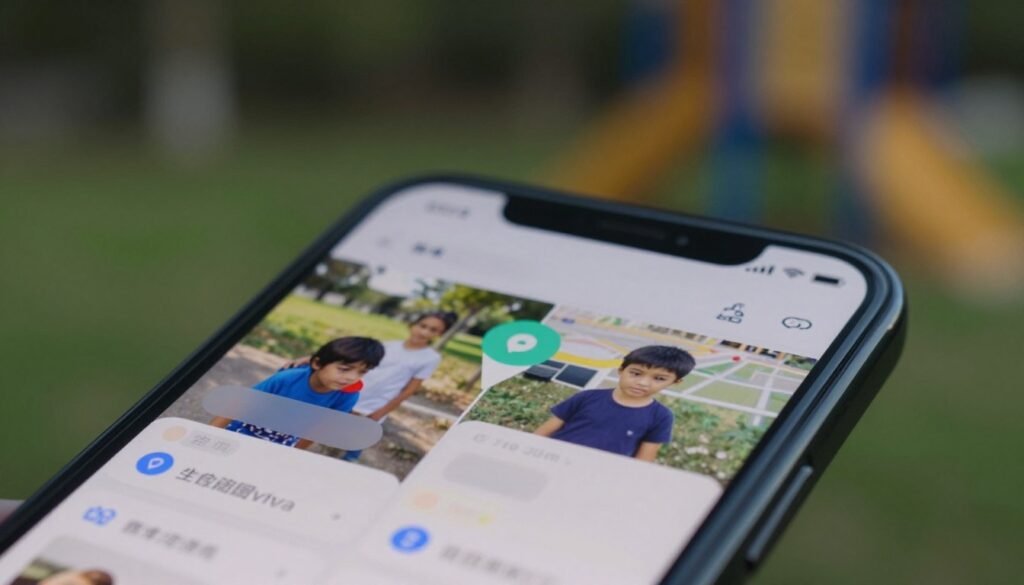
Turn off camera location on iPhone
Open Settings → Privacy & Security → Location Services → Camera and set to “Never.” Take a test photo and check metadata to confirm the GPS field is absent.
Disable tags on Android and tighten app permissions
In Camera app → Settings, turn Location tags “Off.” Or go to Settings → Apps → Camera → Permissions → Location → Deny. Also review social apps and deny camera access to services you don’t trust.
Remove tags from existing images
Use mobile tools like “Photo Metadata Remover” or “Scrambled Exif” to strip embedded fields while keeping image quality.
Desktop batch cleaning and a simple routine
On Windows, right‑click → Properties → Details → “Remove Properties and Personal Information” to clean many files at once.
“A quick pre-post routine saves time and keeps routine spots out of public view.”
- 1) Remove or confirm no metadata
- 2) Scan the background for school names or addresses
- 3) Share with a smaller audience
- 4) Avoid live, real‑time posting
Safer sharing on social media platforms and in school or group settings
When you share school moments online, small choices make a big difference. Use privacy settings on social media to limit who sees a post and who can tag your family. These audience controls help reduce wide reposting and casual exposure.

What privacy settings can—and can’t—do
Privacy settings on social media platforms let you create private albums, restrict tagging, and approve followers. They do not reliably remove embedded metadata from images uploaded to media platforms.
Remove visible location clues before posting
Avoid school names, street numbers, logos, and landmark details in backgrounds. Crop, blur, or shift the angle so the moment stays clear but the scene is less specific.
Group sharing and sensible limits
For class parties or games, skip full rosters and public tags. Share to closed groups or direct messages when a post includes many minors. That reduces attention from strangers and potential predators.
FERPA, permissions, and removal requests
FERPA gives you rights about school records, including some photos. Ask your school for its photo policy, submit an opt-out if offered, and ask how images are used on social media platforms.
“Please remove this image of my child and do not repost it. Thank you for understanding my privacy preference.”
| Action | Why it helps | How to do it |
|---|---|---|
| Private albums | Limits audience on media platforms | Use platform album privacy or closed group |
| Disable tagging | Prevents others from naming kids or places | Adjust tag settings in account privacy settings |
| Request opt-out | Stops school-run sharing | Contact school admin, follow their opt-out form |
Conclusion
A few quick steps today make a big difference for your family’s online privacy and long-term protection. Turn off camera location, strip metadata from recent images, review social privacy settings, and avoid live posting at school events.
Watch for two exposure types: hidden EXIF tags and visible cues like signs or uniforms. Removing both cuts privacy risks and helps keep kids safer as they grow.
Agree on a simple, permission-based sharing rule with caregivers and relatives so everyone follows the same plan. You can keep memories while keeping details out of public view—share smarter, share smaller, and keep your family’s footprint under your control.
FAQ
What is the risk of sharing photos that include GPS or metadata?
Embedded GPS or metadata can reveal where a picture was taken, which may expose your home, school, or daily routes. That data can be read by apps and people who download the image, so turn off location services for your camera and strip metadata before you post.
How can I turn off location services on an iPhone camera?
Go to Settings > Privacy & Security > Location Services. Tap Camera and select “Never.” You can also choose to remove location from individual images in the Photos app before sharing.
What steps should I take on Android to stop apps from tagging place data?
Open Settings > Location > App permissions. Revoke camera access to location for apps you don’t trust. In the Camera app, look for a location or GPS icon and disable it to stop new pictures from including coordinates.
How do I remove location and metadata from photos I’ve already taken?
Use built-in tools like Apple’s “Remove Location” in Photos or Android’s info menu. For multiple files, use batch metadata-removal tools such as ExifTool or image editors that strip EXIF data before uploading.
Are there easy mobile tools to strip metadata before sharing?
Yes. Apps like Photo Investigator, MetaClean, and built-in share options on iOS (Remove Location) let you clear metadata quickly on the phone. Always check the app’s reviews and permissions first.
What is a good pre-post routine to reduce your family’s digital footprint?
Develop a simple checklist: turn off camera location, crop out background clues, remove metadata, avoid full names and addresses in captions, and review privacy settings on the platform you’ll use.
How can you avoid revealing school or neighborhood info in background scenes?
Look for visible school logos, street signs, house numbers, or unique landmarks and crop them out or blur those areas. Consider shooting from angles that show faces and moments, not building signage or address plaques.
What social media settings help limit who sees images and what they can do with them?
Use private account settings, create close-friends lists on Instagram, and share albums only with selected contacts on Facebook or Google Photos. But know that platform settings don’t remove embedded metadata—do that before upload.
How should you handle group photos taken at school or sports events?
Get consent from other parents before posting images that include other families. Crop to minimize identifiable details, avoid tagging full names, and share group albums privately rather than posting publicly.
What rights do parents have under FERPA regarding school photos?
FERPA gives parents certain controls over student education records; schools often have photo policies tied to those protections. Contact your school administration to learn how to opt out of directory or yearbook photo use and to request limits on third-party sharing.
How do I ask someone to remove a photo of my family from their feed?
Send a polite direct message explaining your concern and request removal. If that fails, use the platform’s reporting tools or privacy request forms. Most platforms have clear removal or takedown processes for privacy concerns.
Can scammers or predators use small clues in images to target families?
Yes. Even subtle details—like a street sign, backpack logo, or a visible appointment card—can help someone build context. Limit personal info in captions and crop or blur background items that hint at routines or addresses.
Should you use faces and names when posting milestone updates online?
Avoid posting full names with identifiable photos. Use first names only if necessary, or share milestones privately with close family through secure messaging or private albums to reduce exposure.
What desktop options exist for batch-cleaning many images at once?
Tools like Adobe Lightroom, ExifTool, and Windows File Explorer (Properties > Details > Remove Properties and Personal Information) let you remove metadata from many files in a single step before uploading or sharing.
Are there platform features that automatically strip metadata?
Some platforms, like Facebook and Instagram, may strip certain metadata when you upload, but you can’t rely on this. Remove metadata yourself to be certain no embedded location or personal details remain.
How often should you review app permissions and privacy settings?
Check permissions and privacy settings every few months or after major app updates. That helps prevent apps from regaining access to your camera, microphone, or location without your knowledge.
What are quick tips for safe sharing at events like back-to-school or sports?
Take photos that avoid signage, team schedules, or name tags. Share highlights privately with family and the team’s parent group, and ask event organizers about official photo policies before posting.
How can I teach kids about their digital footprint and photo safety?
Start simple: explain why you don’t share addresses or school details online, show them how metadata works, and involve them in deciding what gets posted. Make privacy a regular family conversation.

Igor is the founder of GrecO Metadados, a digital privacy resource dedicated to helping everyday users protect their personal data. With a background in digital security research and a passion for making complex privacy concepts accessible, he writes practical guides on metadata safety, EXIF removal, and responsible photo sharing. Igor believes privacy isn’t about hiding—it’s about having control over what parts of your life travel with your digital footprint.
📧 Contact: suporte@grecometadados.com