
Think of each image you snap as more than a picture. Tiny technical tags travel with the file and can include your exact GPS point, the moment you shot it, the camera model, and software notes. Those tags trace back to a metadata standard created by JEIDA (now JEITA/CIPA) in 1995 and updated as Exif 3.0 in May 2023.
This guide helps you take control. You’ll learn simple steps to inspect those tags, see what they reveal, and remove sensitive entries before sharing. Even a casual photo can expose where you live or when you’re away.
Handling this takes seconds, not tech skills. You can check tags on your phone or PC and strip location or time stamps without hurting image quality. The rest of this article follows a clear workflow: understand → inspect → decide what to keep → strip and share safely.
Key Takeaways
- Exif tags attach hidden information to your photo that can include GPS and time.
- The format dates to 1995 and saw a major update in May 2023 (Exif 3.0).
- Checking metadata takes moments and can protect your privacy and security.
- You can remove sensitive tags without reducing image quality.
- The article shows a step-by-step workflow: understand, inspect, decide, strip, share.
EXIF basics: metadata hiding inside your photos
Your camera or phone saves more than an image—there’s a tiny structured summary tucked into the file header. That short packet helps apps and services read orientation, timestamp, and camera settings without asking you. It turns raw pixels into organized content that’s easier to sort and display.
What “Exchangeable Image File Format” means and why it exists
Exchangeable image file stands for a standard that bundles technical notes with an image. Devices add this metadata so software can auto-rotate, group by date, and show exposure or lens details. For you, that means faster organization and clearer image previews.
Where it sits in an image file header and why you usually don’t see it
In common JPGs the packet lives in the APP1 segment and keeps a TIFF-like structure inside the JPEG wrapper. That placement precedes the pixel stream in the file header, so viewing the picture won’t reveal the hidden information.
Not every image file format carries this same package. Some formats or processing steps strip the metadata, which explains why certain files lack the attached technical notes the next time you share them.
What is EXIF data and what it can reveal about you
Hidden tags inside your photo file can reveal more about your life than the pixels do. A quick look at those entries shows whether a shot carries device fingerprints, timing, or a precise point on a map.
Camera and device identifiers
The file often lists the camera make, model, and lens used. MakerNote may store manufacturer-only entries that sometimes include serial-like identifiers. That can pinpoint a specific device rather than just a brand.
Camera settings and exposure clues
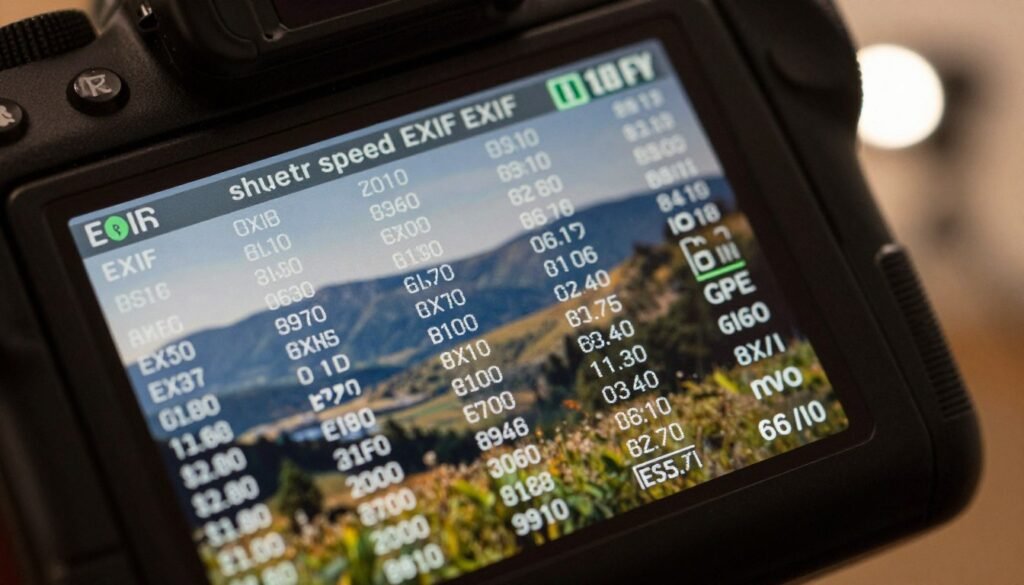
Tags record shutter speed, aperture, ISO, orientation, metering mode, and flash use. These plain settings let someone infer lighting, distance, and technique from your images.
Time, date, and subsecond precision
DateTimeOriginal and related tags timestamp the shot. Subsecond tags and OffsetTime* reduce ambiguity about exact time and timezone, so your travel or home routines can become visible.
Location, thumbnails, and editing info
When GPS tagging is on, coordinates can point to your home, work, or a pickup spot. Thumbnails and software fields may keep editing history. Even a cropped image can leak the original via an embedded thumbnail.
- Quick risk checklist: device & model, camera settings, time/date, GPS, copyright & software.
Which image file format types usually contain EXIF data
Most cameras and phones write extra notes into certain image file types when they save a picture. This helps apps show orientation, time, and camera settings without asking you.
Common formats that carry metadata:
- JPEG / JPG: The most common image format for compressed photos. EXIF for JPEG is stored in the APP1 segment.
- TIFF / TIF: Used for higher-quality or uncompressed shots. The format holds Exif and GPS sub-IFDs inside the TIFF structure.
- WAV (audio): Less known: the Exif spec includes a RIFF WAV section, so audio files can hold similar info.
Not every format supports this package. JPEG 2000 and GIF do not follow the standard, so they generally lack those tags.
Why you might not see metadata
Editing apps, social networks, and export settings often remove or alter tags. A saved copy may lose exif after processing.
Tip: “No exif visible” does not always mean no metadata exists. Other standards like IPTC or XMP might still be present. If you troubleshoot missing entries, check both the file format and the last app or site that handled the image.
| Format | Supports Exif | Storage location |
|---|---|---|
| JPEG / JPG | Yes | APP1 segment |
| TIFF / TIF | Yes | Exif and GPS sub-IFDs |
| WAV (RIFF) | Yes (audio spec) | RIFF metadata chunks |
| JPEG 2000 / GIF | No | Not supported by Exif |
Why EXIF can be a privacy and security issue in the real world
When you send a picture by message or email, invisible tags may travel with it and expose your whereabouts.
Everyday actions like texting a buyer or listing an item online can share more than the image itself. Consumer Reports warns you to be cautious with people you don’t know because location can be exposed. If GPS tagging is enabled, coordinates often embed in the file and go with the photo.

How casual sharing leaks location
Sending images directly by email or text usually preserves embedded tags. That means a stranger could pinpoint your home or routine from one file. Jonathan Rajewski calls this “a gold mine” and points to a Craigslist case where metadata revealed a seller’s address.
How companies and investigators use this information
Companies may process uploaded files and retain tags even if viewers don’t see them. Digital forensics teams use exif to link files to a specific device or timeline.
How editing can leave revealing remnants
Simple edits like cropping or blurring don’t always remove embedded thumbnails or all tags. That false sense of safety can let sensitive info survive exports.
| Scenario | Risk | What may survive |
|---|---|---|
| Email / Text | Direct transfer of location and time | GPS, timestamp, device make/model |
| Marketplace listing | Buyer or stranger learns where you are | Coordinates, embedded thumbnails |
| Editing & Export | Partial removal leaves traces | Old thumbnails, leftover tags |
| Platform upload | Company processing can retain info | Full metadata held on servers |
How to view EXIF information on your computer or phone
A quick inspection helps you decide what to keep before sharing. Use built-in tools for a no-download check, then move to dedicated software when you need full tag detail.
Built-in file Properties: On a Windows computer, right-click a file → select Properties → open the Details tab. That tab shows basic exif information like timestamp, orientation, and some camera fields. It’s the fastest way to see if GPS or a timestamp remains.
When to use dedicated tools
Built-in views show only the basics. If you need MakerNote fields, full timestamps, or GPS tags, use a stronger tool. Command-line utilities such as ExifTool and GUI viewers reveal and let you edit every tag.
Checking images in your browser
Browser extensions like ExifViewer can display exif information for images still carrying tags online. Keep in mind many sites strip metadata, so the extension may find nothing.
- Fast no-download way: Use Properties → Details on Windows to check a file before emailing it.
- Deeper inspection: Run ExifTool or a dedicated viewer to see full tag sets and MakerNote fields.
- Decision point: Once you view the information, decide to keep copyright tags and remove location or timestamps when needed.
How to remove EXIF data or turn off location metadata before sharing
You can stop hidden file notes from traveling with your pictures in just a few clicks. Below are simple, device-specific steps and a repeatable workflow for larger batches.

Quick steps by device
- Mac: In Preview use Tools → Show Inspector → remove location and time entries before export. For many files use Apple Photos export options to strip location.
- Windows: Right-click → Properties → Details → Remove Properties and Personal Information for a one-off clean.
- iPhone: Use the Share sheet → Options → toggle off Location. This removes location on shared images.
- Android: Open your gallery share settings or use the Save as copy / remove location option before sending.
Repeatable workflows and keeping ownership
When you need predictable results for many files, use ExifTool as a trusted tool. A single command can strip gps, timestamps, and identifiers while keeping copyright and your name.
Export trap checklist & verification
Watch for: some editing software may keep embedded thumbnails or partial tags on export. Always export to a new file and re-check properties.
| Action | Good for | Keeps copyright/name? |
|---|---|---|
| Share-sheet remove location | Quick single images | No (usually removes location only) |
| Remove Properties (Windows) | One-off desktop clean | Optional — you can keep copyright |
| ExifTool batch strip | Many files; repeatable workflow | Yes — preserve chosen tags |
Final step: After any removal, open Properties or run a quick viewer to confirm sensitive entries are gone. You’re in control — removing metadata only takes minutes, and it protects your privacy.
What happens to EXIF when you upload photos to social media and cloud services
When you upload an image, platforms often remove visible metadata for viewers while keeping copies for processing. That practice means public downloads may lack hidden details, but the original information can still live on company servers.
Platforms that typically strip metadata for viewers
Sites such as Facebook, Instagram, Twitter/X, WhatsApp, Craigslist, and Imgur usually remove exif and similar tags from files that visitors can download. Viewers won’t see timestamps or technical notes in those copies.
Platforms that preserve metadata by default
Flickr preserves exif by default to help photographers share camera details. You can change upload settings and strip location on a per-upload basis if you prefer privacy.
Cloud libraries and sharing modes
Google Photos and Apple Photos keep exif so you can search by date and place. Both offer share options that can omit location from a shared link, but the original files in your library still contain the tags.
Why “stripped for viewers” isn’t the same as deletion
Stripped for viewers usually means the public copy lacks tags. Companies may still collect or store the original data for safety, product improvement, or moderation. For example, device make, camera settings, and timestamp can be used internally.
| Service | Public copy | Original retained? | Privacy tip |
|---|---|---|---|
| Facebook / Instagram | Stripped | Often yes | Remove location before upload |
| Flickr | Preserved | Yes | Change upload defaults to strip location |
| Google / Apple Photos | Preserved in library | Yes | Use share-without-location when sending |
| Craigslist / Imgur / WhatsApp | Stripped | May be kept | Strip before posting if it’s a home photo |
Quick example: If you post a home interior, strip location and device info before upload to avoid exposing private details.
Conclusion
A single shared image can contain more clues than the picture itself shows at first glance. Many files carry hidden exif data and brief technical information that help apps organize images—and that can expose timing, device details, or place.
You control what travels with a file. View tags, decide which entries to keep, then remove sensitive ones before sharing. Do a quick check after export to confirm the result.
Follow the simple workflow: identify what’s inside, choose what stays, strip the rest, and verify the cleaned file. Remember platforms treat uploads differently, so a posted copy may not equal permanent deletion of the original.
Rule of thumb: if you won’t tell a stranger the exact time and place, don’t let a photo do it for you. Take a minute now—check a recent image and set safer defaults for your next share.
FAQ
What does “Exchangeable Image File Format” mean and why should you care?
That phrase names the standard cameras and phones use to attach metadata to pictures. It helps devices record settings, timestamps, and ownership so your shots open consistently on other software. You should care because those details can also reveal location, device identity, and editing history that you might not want to share.
Where does this metadata sit inside an image file and why don’t you usually see it?
The tags live in the file header and in special segments reserved for metadata. Most image viewers render the picture but hide the header information, so you don’t notice it. You’ll only see the full tag list in Properties, a dedicated viewer, or a metadata tool.
Which camera and device details can be stored and how specific are they?
Files can include make, model, lens, and manufacturer notes (MakerNote) that reveal the exact device and sometimes firmware. That level of detail can link images to a single camera or phone, which matters for ownership, authentication, or investigations.
What shooting settings are often recorded with a photo?
Your images can store shutter speed, aperture, ISO, focal length, orientation, and flash use. Those tags help photographers reproduce settings and let editing apps auto-correct images, but they also document how a picture was taken.
How precise are the time and date tags in image files?
Time tags include date, time, and often subsecond values and time zone info when the device supplies them. That precision can tie a photo to a moment, useful for timelines but risky if you share images that reveal your schedule or presence.
Can photos contain GPS coordinates and how accurate are they?
Yes. If geotagging is enabled, the file can include latitude, longitude, altitude, and even a bearing. Accuracy depends on your device’s GPS and may be within meters, so geo-enabled pictures can reveal exact locations like your home or workplace.
What ownership and editing details might remain in a file?
Copyright fields and software tags can show the photographer’s name, organization, and which apps edited the image. That helps enforce rights but can also expose your identity and post-production history if you share files publicly.
Which image formats typically contain this kind of metadata?
JPEG and TIFF commonly carry these tags. RAW formats from Canon, Nikon, Sony, and others hold extensive maker-specific notes. Some formats like PNG may store limited metadata, and audio files embed different tag types entirely.
Why do some images lose their tags during processing?
Converting formats, exporting from some editors, or saving through certain web services can strip or rewrite metadata. Cropping, resaving, or compressing an image may also remove tags depending on the tool’s defaults.
How can sharing a picture expose your location or identity in real life?
Sending photos by email, messaging apps, or listing items online can transmit GPS and device identifiers. Burglars, stalkers, or scammers can use that info to find your address, daily routines, or linked social accounts.
Who can access these tags besides you?
Businesses, investigators, and anyone with the right tools can read them. Companies collect analytics, law enforcement can use device IDs, and savvy users can extract tags from images you post unless they’ve been removed.
Can editing images leave behind hidden traces even after you try to remove tags?
Yes. Editing might create thumbnails or alternate image segments that still hold metadata. Incomplete removal or exported copies can retain sensitive tags, so you need reliable tools or workflows to fully strip them.
How do you check basic metadata on Windows or macOS?
On Windows, right-click the file, choose Properties, and open the Details tab. On macOS, select the file and press Command-I or view info in Finder. Those views show common tags like date, camera, and sometimes GPS.
What tools show full tag lists and MakerNote fields?
Use dedicated utilities like ExifTool, Adobe Bridge, or Photo Mechanic to read complete metadata. These apps reveal embedded tags that built-in viewers omit and let you export or inspect raw values.
Can you view metadata from images in a web browser?
Yes. Browser extensions or online EXIF viewers will display tags for images that still include metadata on the server. If a platform strips tags, the browser can’t show what’s been removed.
How do you remove location and other sensitive tags on Mac, Windows, iPhone, and Android?
On macOS and Windows you can strip metadata via Preview or Photos exports and the file Properties/Details tools. On iPhone, use the Share menu’s Options to disable Location; on Android, toggle Location off before sharing or use the Gallery’s edit/share options to remove tags.
When should you use ExifTool or similar trusted utilities?
Use command-line tools like ExifTool when you need precise, repeatable cleansing across many files or must remove MakerNote and hidden segments. Professionals rely on these for batch workflows and complete removal.
How can you keep copyright info while removing GPS and other sensitive tags?
Use tools that let you selectively delete tags—keep the copyright or creator fields and remove GPS, serial number, and other private tags. ExifTool and many editors support selective tag editing during export.
What should you watch for when exporting from photo editors so private tags don’t survive?
Check export settings for metadata options, choose to remove GPS or all metadata if needed, and verify the exported file with a metadata viewer. Some editors embed thumbnails or sidecar files—inspect those too.
Do social platforms remove metadata when you upload photos?
Many platforms strip tags for public viewing. Facebook, Instagram, Twitter, and WhatsApp typically remove most visible metadata, but policies and behavior change, and some services may retain tags internally.
Which platforms tend to preserve tags and how can you change that?
Flickr and some cloud services often preserve metadata by default. Check account or upload settings to disable metadata retention or strip tags before upload if you want privacy.
How do Google Photos and Apple Photos handle metadata and sharing?
Google Photos and Apple Photos retain metadata in your library. When sharing, you can export copies with or without location info—use the apps’ sharing options to strip sensitive tags before sending.
If a site says images are “stripped for viewers,” does that mean they discard the metadata entirely?
Not necessarily. “Stripped for viewers” often means the display layer lacks visible tags, but companies may keep metadata on servers for analytics, moderation, or backups. If you need guarantees, remove tags before upload.

Igor is the founder of GrecO Metadados, a digital privacy resource dedicated to helping everyday users protect their personal data. With a background in digital security research and a passion for making complex privacy concepts accessible, he writes practical guides on metadata safety, EXIF removal, and responsible photo sharing. Igor believes privacy isn’t about hiding—it’s about having control over what parts of your life travel with your digital footprint.
📧 Contact: suporte@grecometadados.com