
Introduction
When you snap a photo on your iPhone, you’re capturing more than just a moment. Behind the image, your device quietly saves additional technical details — information most people never notice. This hidden layer, known as EXIF metadata, can include the time the photo was taken, your device model, camera settings, and sometimes even the exact location.
For everyday users, this may not seem important. But in today’s digital world, small pieces of data can travel far once shared online.
Whether you post on social media, send images to friends, upload content to a website, or store personal memories in the cloud, understanding how metadata works is part of maintaining healthy digital habits.
The good news is that Apple provides built-in tools to manage and remove this information. In this complete guide, you’ll learn how to remove EXIF data on iPhone step by step, how to disable location tracking entirely, and how to share photos more safely in 2026.
Let’s start with the basics.
What Is EXIF Data on iPhone?
EXIF stands for Exchangeable Image File Format. It’s a standard that stores technical details inside image files automatically.
When you take a picture using your iPhone, the system records certain information in the background.
What Information Is Stored?
Depending on your settings, your photos may include:
- Date and time
- iPhone model
- Camera settings (ISO, lens, exposure)
- Editing history
- GPS coordinates (if location is enabled)
The most sensitive of these is location data. If Location Services is active for the Camera app, your images may contain precise latitude and longitude details.
If you’d like a deeper explanation of how this works, see our article on What Is GPS Metadata in Photos?
Why Removing Metadata Matters
Many users assume that once a photo is shared, it’s just an image. However, embedded data can sometimes reveal more than expected.
Protecting Personal Privacy
If you take photos at home and upload them without adjusting settings, the metadata may reflect your exact address.
While not everyone extracts this information, it’s publicly accessible in certain scenarios.
Family and Child Safety
Parents who share photos of children online should be especially mindful. Location data can unintentionally expose:
- School locations
- Activity centers
- Daily routines
Practicing good image hygiene is part of broader family photo safety habits.
Professional Image Sharing
If you send images to clients or upload them to your website, removing unnecessary metadata can:
- Reduce file size
- Maintain professionalism
- Limit device information exposure
For a broader overview of privacy-friendly tools, explore our guide on Best Free EXIF Cleaner Tools for 2026.
How to View Photo Metadata on iPhone
Before removing metadata, it’s helpful to know how to see what’s there.
Step 1: Open the Photos App
Select any photo from your library.
Step 2: Swipe Up or Tap the “i” Icon
You’ll see:
- A small map (if location is enabled)
- Date and time
- Device model
- Camera settings
This screen gives you full visibility into what’s stored.
Understanding what exists is the first step toward managing it responsibly.
How to Remove Location Data Before Sharing
Apple makes it easy to remove location information when sharing a photo.
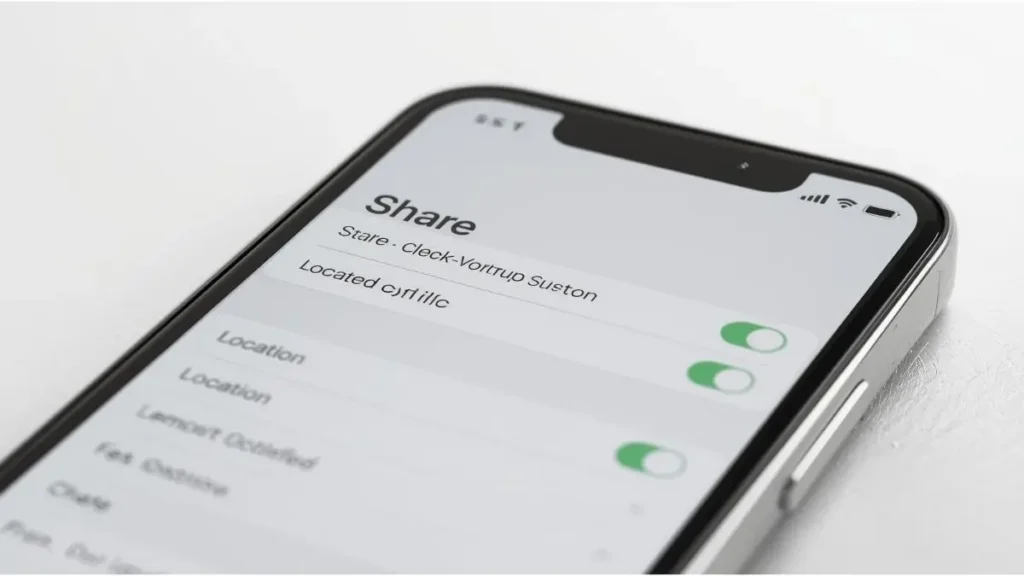
Method: Share Without Location
- Open the image in Photos
- Tap the Share button
- Tap Options at the top
- Toggle off Location
- Send the photo
This removes GPS data from the shared copy, while keeping the original intact in your library.
It’s a simple but effective privacy habit.
How to Permanently Remove Location from a Photo
If you want to delete location data entirely from a specific image, follow these steps:
- Open the photo
- Tap the “i” icon
- Tap Adjust next to the location map
- Choose No Location
This action permanently removes GPS data from that photo.
Repeat as needed for other images.
How to Remove Metadata from Multiple Photos at Once
If you need to clean several images before sending them:
- Tap Select in the Photos app
- Choose multiple photos
- Tap Share
- Tap Options
- Disable Location
This removes location data from the shared versions.
Keep in mind that the originals still retain metadata unless individually adjusted.
How to Disable Location for the Camera App
If you prefer prevention over cleanup, you can stop your iPhone from attaching GPS data to new photos.
Step-by-Step Instructions
- Open Settings
- Tap Privacy & Security
- Tap Location Services
- Scroll to Camera
- Select Never
From that point forward, newly captured photos will not include location coordinates.

Does AirDrop Remove Metadata?
By default, AirDrop transfers the original file, including metadata.
If you want to remove location data before using AirDrop:
- Use the Share → Options method
- Disable Location before sending
Always double-check when sharing files directly between devices.
Do Social Media Platforms Remove EXIF Data?
Many major platforms compress images and remove certain metadata automatically. However:
- Policies can change
- Not all metadata fields are guaranteed removed
- Direct file transfers may preserve data
It’s safer to remove sensitive information before uploading.
We explore this topic in detail in Does Instagram Remove Metadata?
Using Third-Party Apps for More Control
While Apple’s built-in tools are sufficient for most users, some apps offer expanded control.
These apps may allow:
- Full metadata removal (not just location)
- Batch cleaning
- File renaming
- Export optimization
Before installing:
- Check ratings and reviews
- Verify developer credibility
- Avoid unnecessary permission requests
Privacy tools should enhance security — not compromise it.
How to Confirm Metadata Was Removed
After adjusting or sharing a photo:
- Reopen the image
- Tap the info icon
- Confirm that the location map is gone
You can also send the cleaned image to yourself and recheck.
Verification ensures your settings are working as expected.
Common Misunderstandings About iPhone Metadata
Let’s address a few myths.
Editing a Photo Removes Metadata
Basic edits like cropping or filters do not automatically remove EXIF data.
Screenshots Are Always Metadata-Free
Screenshots typically don’t include GPS data, but they still contain file information like date and device type.
Turning Off Wi-Fi Prevents Location Tagging
Location data comes from Location Services, not your internet connection.
Understanding the difference prevents confusion.
Digital Hygiene Beyond Metadata
Removing metadata is one piece of a larger privacy routine.
Consider these additional habits:
- Review app permissions regularly
- Disable Precise Location for non-essential apps
- Update iOS promptly
- Use strong device passwords
- Be mindful when sharing original files
If you’re building better privacy habits overall, our Digital Hygiene Tips guide offers practical suggestions.
For Bloggers and Content Creators
If you manage a website or publish content online, metadata management also improves workflow.
Smaller File Sizes
Removing metadata can slightly reduce file size, improving:
- Page speed
- User experience
- Search engine performance
Professional Image Handling
Consistent image cleaning reflects attention to detail — especially important in professional environments.
If you often prepare images on desktop before uploading, tools in our Desktop Tools Guide may help streamline the process.
Looking Ahead: Photo Privacy in 2026
Apple continues refining privacy controls with each iOS update. However, awareness remains the user’s responsibility.
Understanding:
- Where data is stored
- How it’s shared
- How to adjust settings
… empowers you to make informed choices.
Privacy doesn’t require technical expertise. It simply requires awareness and a few consistent habits.
Conclusion
Photos capture memories. But behind every image, additional information may be stored quietly in the background.
Learning how to remove EXIF data on iPhone gives you more control over what you share and what remains private.
To recap:
- You can view metadata inside the Photos app
- You can remove location before sharing
- You can permanently delete GPS data
- You can disable location tracking entirely
These small steps take only seconds — yet they make a meaningful difference.
When was the last time you checked the metadata on your photos? Take a moment today and explore. You might discover information you didn’t realize was there.

Igor Greco is the founder of GrecO Metadados and has spent the last several years researching how hidden file data — metadata — exposes personal information that most people never intended to share.
His interest in metadata privacy started with a frustrating realization: a photo he shared online still carried the exact GPS coordinates of where it was taken. That moment led him to dig deeper into EXIF data, document properties, and how everyday apps handle the information attached to your files — often without telling you.
Since then, Igor has tested dozens of metadata removal tools across Android, iPhone, Windows, and Mac, and written guides focused on three groups he cares most about: parents sharing photos of their kids, freelancers sending documents to clients, and everyday users who simply want more control over their digital footprint.
Privacy, in his view, isn’t about hiding. It’s about deciding — on your own terms — what information travels with your files.