
Introduction
Every photo, document, and file on your computer carries more information than you might expect. Beyond what you can see on the screen, most files include hidden technical details known as metadata. This data can reveal when a file was created, which device was used, and sometimes even where it originated.
For many users, metadata goes unnoticed. But understanding how to check metadata on Windows and Mac is an important step toward better digital awareness.
Whether you’re managing personal photos, preparing documents for clients, or uploading images to a website, reviewing file metadata helps you stay informed about what information is attached to your files.
In this complete guide, you’ll learn:
- What metadata is
- How to view metadata on Windows
- How to check file details on macOS
- How to interpret common metadata fields
- When you should consider removing metadata
Let’s start by understanding what metadata actually includes.
What Is File Metadata?
Metadata is often described as “data about data.” It provides background information about a file.
For images, metadata may include:
- Date and time created
- Camera model
- File size and format
- Editing software
- GPS location (if enabled)
For documents, metadata may include:
- Author name
- Last modified date
- Document revision history
- Software used to create the file
If you want a deeper explanation focused on images, see our article on What Is EXIF Data and Why Should You Care?
Understanding metadata doesn’t require technical expertise. It simply means knowing where to look.
Why Checking Metadata Matters
You might wonder why reviewing metadata is important.
Here are a few practical reasons.
Privacy Awareness
Some photos include GPS coordinates. If shared publicly, this information could reveal precise locations.
Professional Document Sharing
Before sending files to clients, checking metadata ensures that hidden details such as internal author names or editing history are not unintentionally shared.
Website Optimization
For bloggers and content creators, reviewing image properties can help manage file size, dimensions, and technical details before uploading.
Small habits like checking metadata contribute to stronger digital hygiene overall.
How to Check Metadata on Windows 10 and 11
Windows makes it relatively simple to view file metadata directly from File Explorer.
Method 1: Using File Properties
This is the quickest way.
- Locate the file in File Explorer
- Right-click the file
- Select Properties
- Click the Details tab
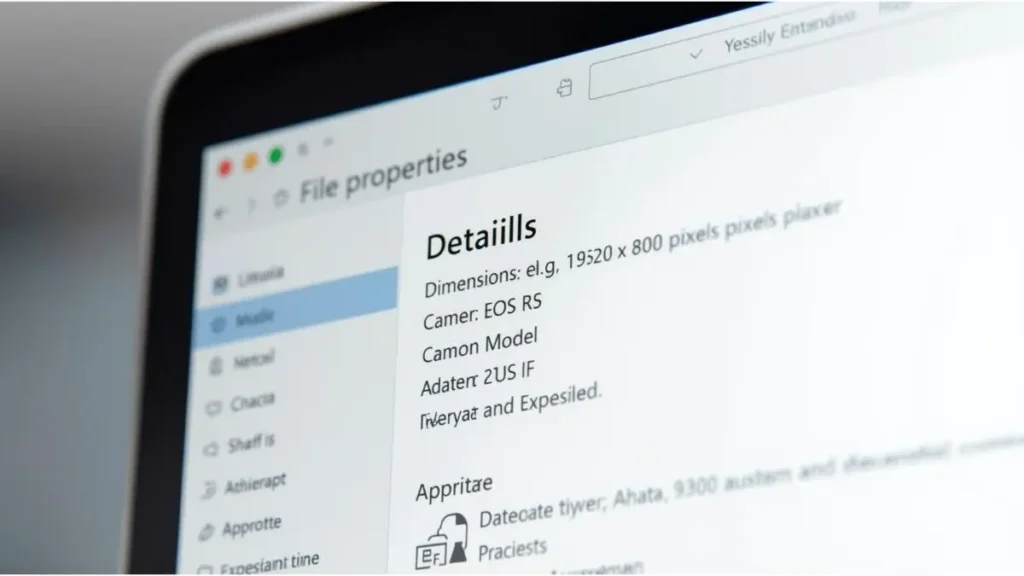
You’ll see information such as:
- Date created
- Date modified
- File size
- Camera model (for images)
- Dimensions
- Author (for documents)
This method works for images, PDFs, Word files, and many other file types.
Method 2: Using the Preview Pane
Windows also offers a Preview Pane option.
- Open File Explorer
- Click View
- Enable Details Pane
When you select a file, metadata appears on the side without opening the Properties window.
This is useful for quickly reviewing multiple files.
How to Check Image Metadata on Windows Photos App
If you open an image using the Photos app:
- Open the image
- Click the three dots (menu)
- Select File info
Here you can view:
- Camera information
- Resolution
- Date taken
- Location (if available)
If location data is present, a small map preview may appear.
If you’re concerned about location details, you may want to read our guide on How to Remove EXIF Data on iPhone for mobile-related practices.
How to Check Metadata on macOS
Mac users can view metadata in several ways using Finder and Preview.
Method 1: Using Finder “Get Info”
- Locate the file in Finder
- Right-click the file
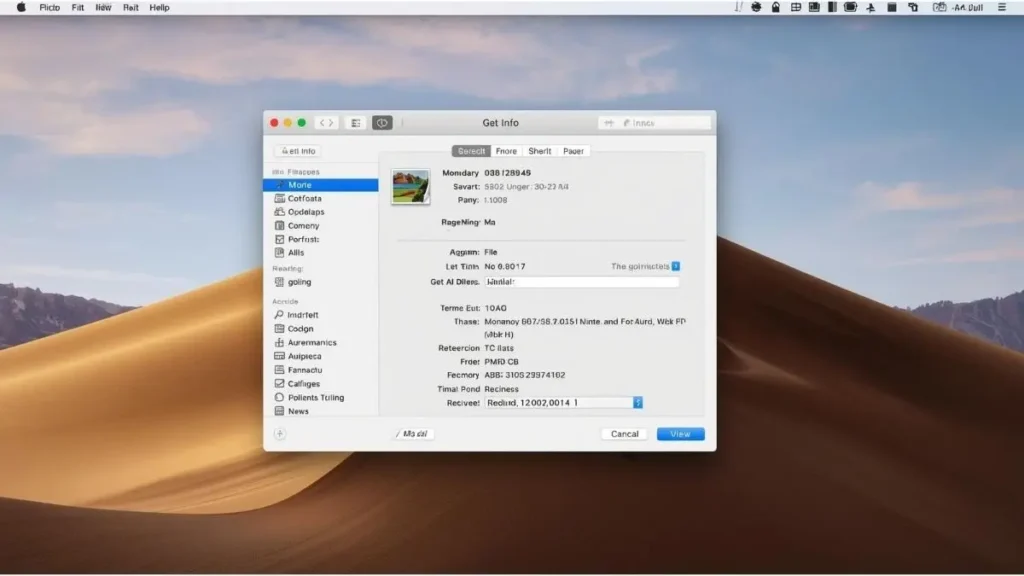
- Select Get Info
A panel will open displaying:
- File size
- Created and modified dates
- File type
- Dimensions (for images)
This method provides general metadata.
Method 2: Using Preview for Image Metadata
For more detailed image information:
- Open the image in Preview
- Click Tools
- Select Show Inspector
- Click the “i” icon
You’ll see additional tabs with:
- EXIF details
- Camera settings
- GPS data (if available)
Preview offers more technical details than Finder alone.
How to Check Document Metadata on Mac
For Word or PDF documents:
- Open the file
- Click File → Properties (in Word)
- Or open the PDF in Preview and check the Inspector
You may see:
- Author name
- Software used
- Creation date
- Modification history
If you frequently send documents professionally, consider reviewing our article on How to Remove Metadata from PDF Before Sending to Client.
Understanding Common Metadata Fields
When checking metadata, certain fields appear frequently.
Date Created vs. Date Modified
- Date Created: When the file was first saved
- Date Modified: When it was last edited
These can differ significantly.
Camera Model
Shows the device used to capture an image.
Dimensions
Indicates image resolution (e.g., 4032 x 3024 pixels).
GPS Coordinates
If present, these can pinpoint where a photo was taken.
Knowing how to interpret these fields helps you make informed decisions.
When Should You Remove Metadata?
Checking metadata is not the same as removing it.
You might consider removing metadata when:
- Uploading images publicly
- Sharing sensitive documents
- Sending files to external clients
- Posting family photos online
For desktop tools that allow metadata removal, see our guide on Best Free Tools to Clean EXIF Data from Images (2026).
How Metadata Affects Website Performance
For website owners, metadata has technical implications.
File Size Considerations
Extra metadata slightly increases file size. While small per image, this can add up across hundreds of files.
Smaller files improve:
- Page load speed
- User experience
- Search engine performance
Professional Image Preparation
Reviewing metadata before upload helps ensure files are optimized and appropriate for public sharing.
If you’re preparing large batches, our IrfanView tutorial may help streamline the process.
Common Misconceptions About Metadata
Let’s clarify a few points.
“Metadata Is Always Dangerous”
Not necessarily. Most metadata is harmless technical information.
The key is awareness.
“Deleting a File Removes All Data Everywhere”
Once shared, copies may retain their own metadata.
“Mac and Windows Show the Same Details”
Both systems display similar core information, but advanced EXIF data may appear differently depending on the app used.
Understanding system differences prevents confusion.
Building Better Digital Habits
Checking metadata doesn’t need to become complicated.
Here are simple habits to adopt:
- Review file properties before sharing
- Disable camera location if unnecessary
- Clean documents before emailing clients
- Keep your operating system updated
If you’re building stronger privacy routines, our Digital Hygiene Tips category offers additional guidance.
Advanced Tools for Deeper Metadata Inspection
For users who need more technical detail, advanced tools like ExifTool provide deeper inspection capabilities.
These tools allow:
- Viewing hidden EXIF fields
- Inspecting batch files
- Exporting metadata reports
If you’re new to this type of software, start with our ExifTool for Beginners guide.
Metadata in 2026: Why Awareness Still Matters
As technology evolves, file metadata remains a standard part of digital systems.
While operating systems improve privacy controls, user awareness remains essential.
Checking metadata:
- Takes only seconds
- Requires no special software
- Helps prevent unintended information sharing
In a connected world, understanding what your files contain is simply part of responsible digital use.
Conclusion
Metadata exists quietly in the background of nearly every file on your computer. While it often contains harmless technical details, reviewing it before sharing files is a smart and simple habit.
On Windows, you can check metadata through File Properties and the Details tab. On macOS, Finder’s Get Info and Preview’s Inspector provide similar insights.
By taking a moment to review file information before sending or uploading, you maintain greater control over your digital footprint.
Have you ever checked the metadata on your files before sharing them? If not, open a file today and explore its details — you may learn something new about the information your devices store automatically.

Igor Greco is the founder of GrecO Metadados and has spent the last several years researching how hidden file data — metadata — exposes personal information that most people never intended to share.
His interest in metadata privacy started with a frustrating realization: a photo he shared online still carried the exact GPS coordinates of where it was taken. That moment led him to dig deeper into EXIF data, document properties, and how everyday apps handle the information attached to your files — often without telling you.
Since then, Igor has tested dozens of metadata removal tools across Android, iPhone, Windows, and Mac, and written guides focused on three groups he cares most about: parents sharing photos of their kids, freelancers sending documents to clients, and everyday users who simply want more control over their digital footprint.
Privacy, in his view, isn’t about hiding. It’s about deciding — on your own terms — what information travels with your files.